

 1
1



Grow your store
How to show Shopify on-site messages on mobile without covering Add to cart
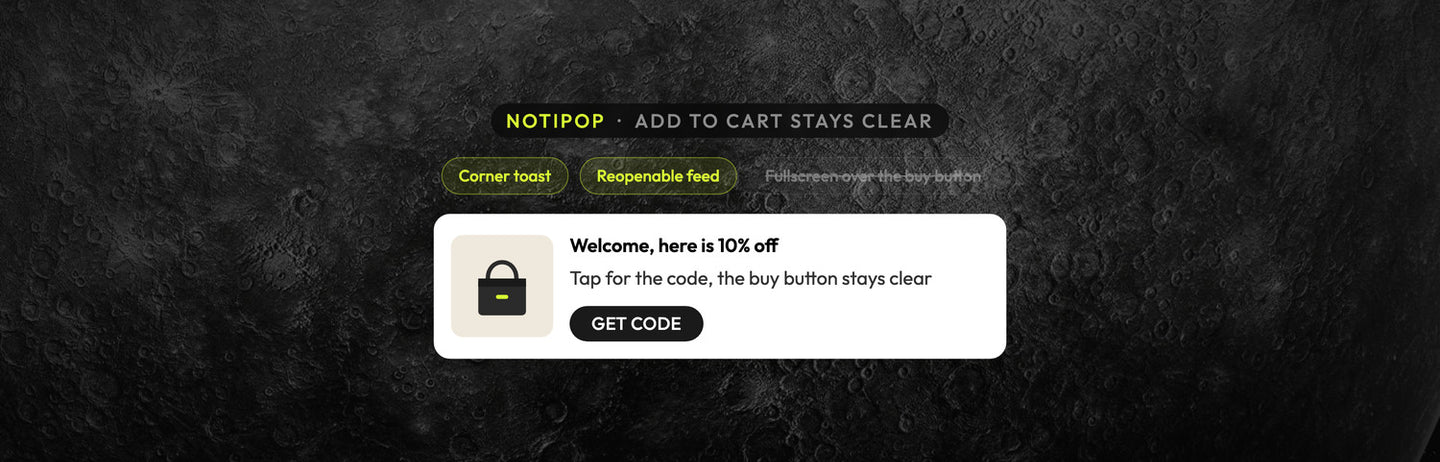
On phones, keep Add to cart clear. Almost every promotion can live in a reopenable feed or a soft corner toast, and you can save a single delayed interrupt for the job that really needs attention. Never put a fullscreen welcome over the buy button.
This guide covers a mobile surface ladder, a job × mobile surface × buy-button-clear table, phone PDP audit steps, before-and-after copy, and a mistakes checklist. Keep your current popup, and use Atomato beside it so list growth does not block the tap that pays the bills.
Why covering Add to cart on mobile hurts
A significant number of sessions come from mobile devices. Sticky Add to cart, a bottom nav, and a large popup all compete for the same strip of screen. When a message covers the buy button, shoppers dismiss it to reach the button, or they leave. The emails-captured number looks fine. Product page conversion does not.
Principle: the buy button is the primary control on a mobile PDP. On-site messages earn a place only if they leave that control free to tap.
The mobile surface ladder
Three surfaces, ordered from least to most obstructive:
- Feed-only (shopper-opened): the offer stays in a card that shoppers open when they are ready. Nothing can cover the Add to cart button.
- Soft corner toast: a brief, non-blocking notification placed away from the sticky ATC strip, usually in a top or opposite corner.
- One delayed interrupt: a capped, one-time popup for when the job needs to ask a clear question. It appears after a scroll or an intent signal, and it is sized so ATC stays visible, or so it can be dismissed in one tap without hiding the button under opaque chrome.
Atomato fits this ladder alongside your current popup stack. NotiPop is a small, non-blocking message for moments when you need attention. On phones it always sits full width along the bottom of the screen, so check it against a sticky Add to cart and keep its Hide after time short. NotiFeed is a second touch that shoppers open themselves, so you never need a second cover to "remind" them of the same code.
Read this guide alongside when to use a popup, the feed, or both for the same offer and how to choose Shopify popup triggers without stacking interrupts. The filter here is phone layout, not which event fires.
Job × mobile surface × buy-button-clear
Check this table before you ship another mobile banner. "Buy-button clear?" is the decision point: if the answer is no on a real phone PDP, switch the surface.
| Job | Preferred mobile surface | Buy-button clear? | Notes |
|---|---|---|---|
| Welcome / list capture | Soft corner toast or one delayed interrupt (not fullscreen over ATC) | Yes, if the toast or interrupt leaves sticky ATC free | Skip a second welcome cover in the same session |
| Promo / discount code | Feed card first; soft toast only if the code must surface once | Yes | Put the full terms in the feed so the toast stays short |
| Free-shipping / gift progress | Feed or soft progress strip above ATC, not over it | Yes | Feed shows the threshold until the cart reaches it |
| Cart help (still on PDP) | Soft toast or feed; avoid fullscreen | Yes | See how to set Shopify on-site campaign frequency without training shoppers to ignore you for caps |
| Urgency / low stock | Soft toast or feed badge; one interrupt only if stock is truly scarce | Yes | Do not stack with a welcome on the same load |
| Exit / last chance | One interrupt max, and only if no earlier interrupt fired | Prefer yes | Prefer a reopenable feed card over a second fullscreen |
| Returning shopper / loyalty | Feed-only | Yes | No fullscreen welcome for known shoppers |
Action plan: open your live theme on a real phone (or in a narrow DevTools viewport). For each live campaign, tag the job, pick the matching row, and rewrite any creative that fails the "Buy-button clear?" test.
Steps: audit the phone PDP, then rewrite the mobile plan
- Open each high-traffic PDP on your phone and note the sticky ATC, bottom bars, and cookie banners.
- Trigger every on-site campaign for the first time, and take a screenshot once the full message is on screen.
- Mark Add to cart and the main CTA as clear, covered, or partially covered.
- Remove or resize any fullscreen message that sits on the buy button. For the same job, prefer the feed or a soft toast.
- Cap interrupts at one per session on mobile, and move the same offer to a reopenable feed card.
- Delay that one interrupt until after first paint and early scroll, so shoppers see the product and ATC first.
- Retest on iOS and Android in portrait mode, with sticky ATC both on and off if the theme supports it.
- Track mobile PDP add-to-cart rate and dismiss rate together. List growth alone is not the scorecard.
In Atomato terms, use NotiPop for the one capped soft interrupt, and check it on a real phone because it sits along the bottom of the screen. Use NotiFeed for the shopper-opened card that never needs to cover the buy button. Keep your existing popup app if it already owns a job. Atomato works alongside it.
Before and after: fullscreen over ATC vs soft toast and feed
Before (fullscreen welcome covering sticky Add to cart):
Phone PDP loads. Fullscreen: Get 10% off. Enter your email!
Sticky Add to cart is under the modal. Shopper taps X to buy, or leaves.
Same session: another banner slides up from the bottom over ATC again.
Problems: the buy path is blocked, dismissing becomes the main task, and list growth hides the conversion cost.
After (soft toast and reopenable feed; ATC clear):
Phone PDP loads. ATC visible. Soft corner toast (away from sticky strip): Welcome. 10% off first order. Want the code?
One tap opens a short capture or dismisses without covering ATC.
Same session: feed card (reopenable): WELCOME10 · free shipping at $50 · [Shop bestsellers]
No second fullscreen. Exit interrupt only if no earlier interrupt fired, and still clear of ATC.
The after version spends attention once, keeps the offer reopenable, and leaves the buy button free at every step.
Mistakes checklist
- Sticky Add to cart covered by a large center or fullscreen modal
- Bottom sheet that stacks over sticky ATC and bottom nav
- Welcome plus promo plus exit all firing in the same mobile session
- Toast that looks soft but is tall enough to cover the buy button
- Measuring only emails captured, not mobile add-to-cart after the message
- Desktop-only QA for creatives that mostly run on phones
- Replacing your popup stack instead of mapping each job to a mobile-safe surface
If a "successful" list-growth campaign leads to a dip in mobile add-to-cart, check whether it covers the buy button before you rewrite the offer code.
Next step
This week, audit your phone PDPs. Use the table above to map each live job to feed-only, a soft toast, or one delayed interrupt, and make sure Add to cart stays clear at every step. Atomato works alongside your existing popup. It does not replace it.
Install Atomato free on Shopify to pair a capped NotiPop interrupt with a reopenable NotiFeed card that does not cover Add to cart. Or check out NotiPop and NotiFeed.
Keep reading
Read next


Ready to show the right message to the right shopper?
Start showing targeted messages on the site without any change in your marketing setup. Atomato lives with your popup, email, and SMS tools.
INSTALL FREE ON SHOPIFY
Five-minute setup. No theme code or developer needed.